

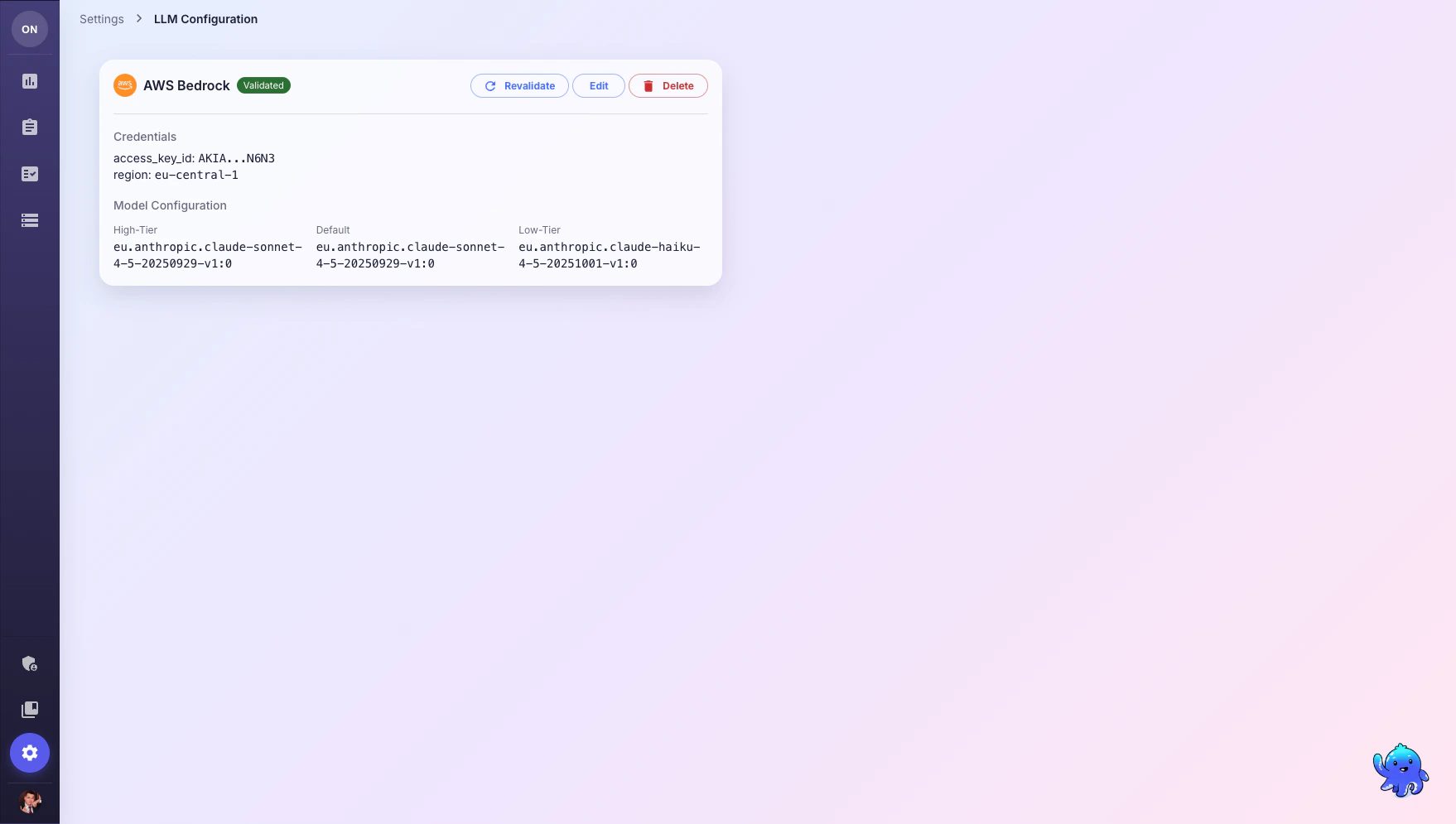
Supported Providers
- AWS Bedrock
- OpenAI
- Anthropic
- Azure OpenAI
Required fields:
- Access Key ID
- Secret Access Key
- Region (e.g.,
us-east-1,eu-central-1)
- High-Tier:
anthropic.claude-sonnet-4-5-20250929-v1:0 - Default:
anthropic.claude-sonnet-4-5-20250929-v1:0 - Low-Tier:
anthropic.claude-haiku-4-5-20251001-v1:0
Model Tiers
OneTest uses three model tiers for different task complexities:Setup Steps
1
Navigate to LLM Configuration
Go to Settings > LLM Configuration from the sidebar.
2
Select Provider
Click your preferred provider (Azure, AWS Bedrock, OpenAI, or Anthropic).
3
Enter Credentials
Fill in the required credentials for your chosen provider.
4
Configure Model Tiers
Enter model identifiers for each tier. Use the recommended models above or your own deployments.
5
Test Connection
Click Test Connection to validate your credentials and model access.
6
Save Configuration
Click Save Configuration to activate the AI Assistant.
What’s Next?
AI Assistant
Start using the AI Assistant to generate and search tests
Integrations and API Keys
Connect CI/CD pipelines and external tools via API keys