

Prerequisites
Before you begin, make sure you have:A OneTest account (Sign up here)
Access to the OneTest web application
Basic understanding of software testing concepts
Step 1: Create Your First Product
A product is a workspace that contains all your tests, test runs, and settings.1
Create New Product
Click ”+ New Product” in the top navigation
2
Fill in Details
Enter the following information:
- Name:
My First App - Description:
Testing my web application - Type:
Web Application
3
Save
Click “Create Product”
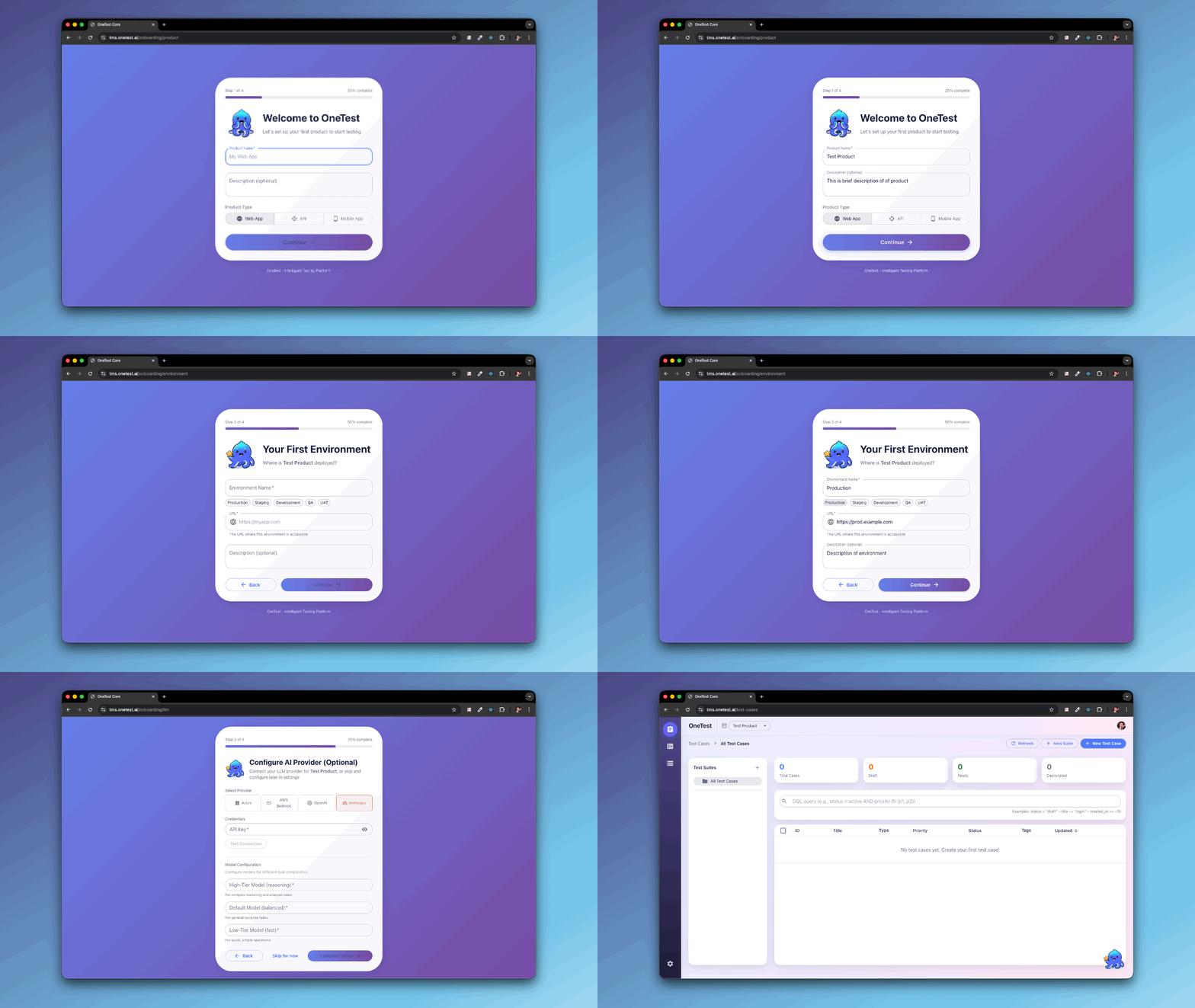
You can create multiple products for different applications or teams.
Step 2: Create Your First Test Case
Now let’s create a simple test case. We’ll use the AI Assistant to make it quick!- Using AI (Recommended)
- Manual Creation
1
Open AI Chat
Press
Cmd/Ctrl + K to open the chat2
Ask AI to Create Test
Type:
3
Review Generated Test
Watch the AI create your test automatically
4
Save
Click “Save” when you’re happy with it
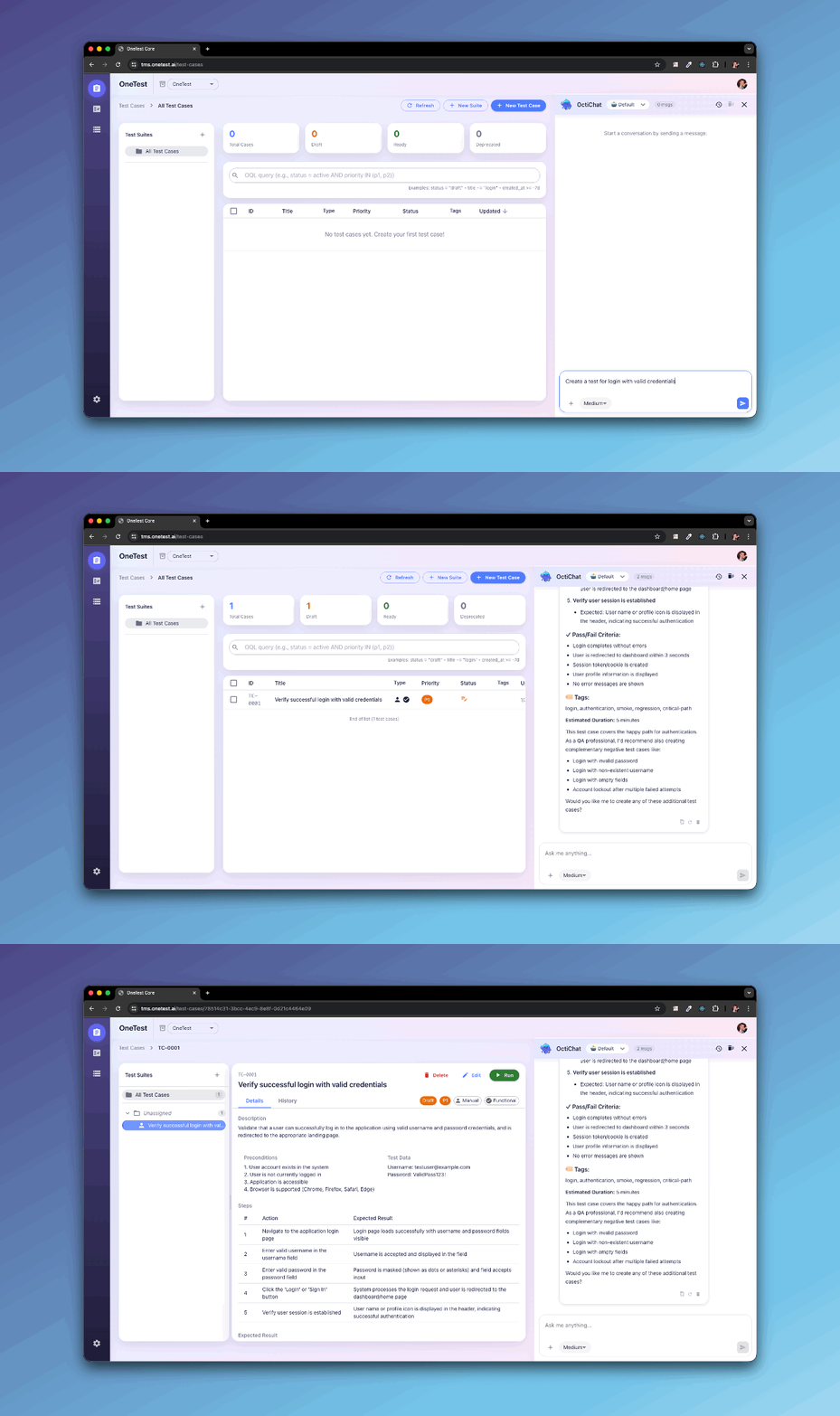
Your test case is automatically assigned a unique identifier (e.g., TC-0001) and is now ready to be executed!
Step 3: Run Your First Test
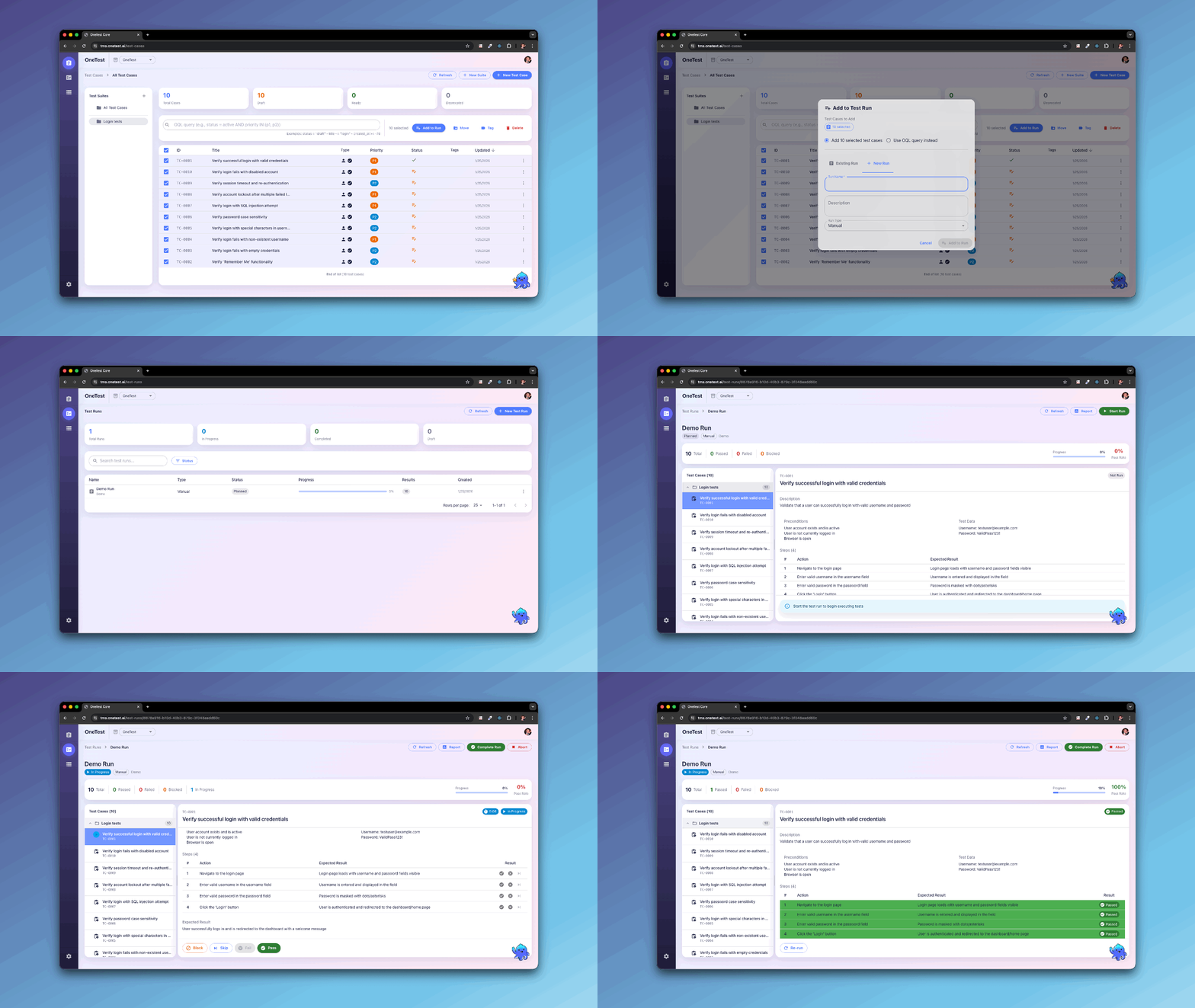
Now let’s execute the test case you just created.1
Go to Test Management
Navigate to the Test Management page
2
Find Your Test
Locate your test case (TC-0001)
3
Start Run
Click the ”▶ Run” button
4
Configure Run
In the dialog, enter:
- Run Name:
First Test Run - Staging - Environment: Select
Staging(or create one) - Build: Select a build or leave empty
5
Execute
Click “Start Run”
Step 4: Execute and Record Results
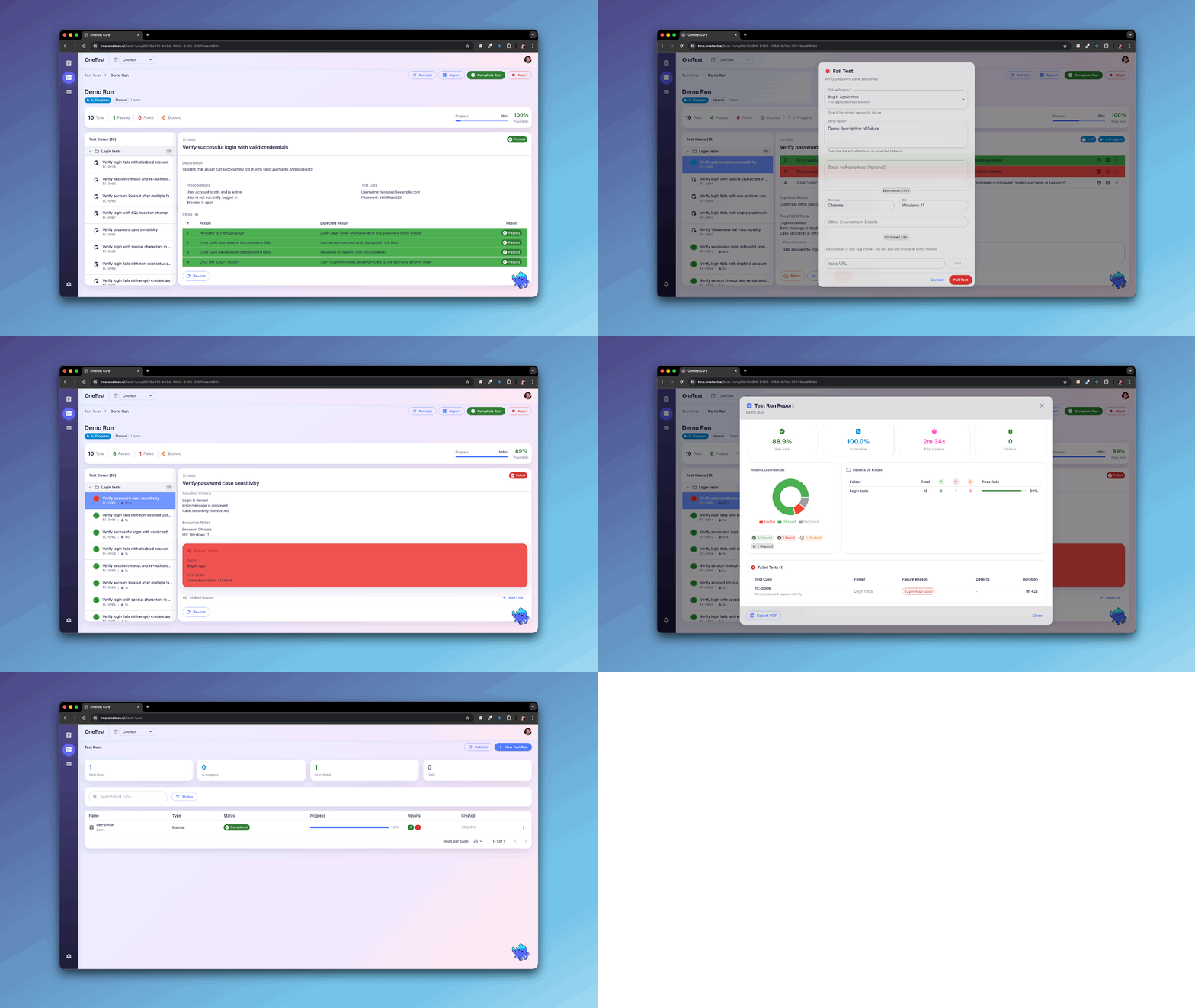
OneTest will take you to the Test Execution page where you can record your results as you test.Recording Results
For each test step:- Perform the action (e.g., navigate to login page)
- Observe the result
- Click the status:
- ✅ Pass - Everything works as expected
- ❌ Fail - Something doesn’t match the expected result
- ⏭️ Skip - Step wasn’t executed
- 🚫 Blocked - Can’t proceed due to an issue
- Add notes if needed (especially for failures!)
Example Execution
Step 5: View Your Results
After completing the test run, you’ll see a summary:Run Summary
What’s Next?
Tests Passed
- Continue creating more test cases
- Build a smoke test suite
- Set up automated runs
Tests Failed
- Review failure notes
- Report bugs to your team
- Retest after fixes
Next Steps
Congratulations! You’ve created and run your first test. Now you can:Generate Tests with AI
Create tests faster with AI assistance
Organize Tests
Use folders and tags effectively
Learn OQL
Search tests with powerful queries
Set Up Environments
Configure staging and production
Plan Releases
Manage releases and sprints
Invite Team
Collaborate with your team
Common Questions
How many test cases can I create?
How many test cases can I create?
Unlimited! Create as many as you need to properly test your application.
Can I automate test execution?
Can I automate test execution?
Manual tests record human execution. For automation, integrate with tools like Selenium or Playwright (coming soon).
Can I import existing tests?
Can I import existing tests?
Yes! Use the AI to convert existing test documentation:
How do I organize many tests?
How do I organize many tests?
Use folders for hierarchy and tags for cross-cutting concerns:
- Folders: By feature (Login, Checkout, Profile)
- Tags: By type (smoke, regression, api)
Need Help?
Ask the AI
Press
Cmd/Ctrl + K and ask anythingCommunity Support
Join the community discussions
Report Issues
Found a bug? Let us know
Email Support
Get help from our team
Ready to level up?
Try generating multiple tests with AI next! 🚀