> ## Documentation Index
> Fetch the complete documentation index at: https://onetest.ai/llms.txt
> Use this file to discover all available pages before exploring further.
# Pipelines
> Multi-phase test case ingestion with AI-powered field mapping and decision gates
Pipelines provide an AI-powered, multi-phase process for importing large volumes of test cases from Excel or CSV files. Unlike [simple import](/ui/import-export), pipelines analyze your file structure, map columns intelligently, and let you review decisions at each stage.
 ## Accessing Pipelines
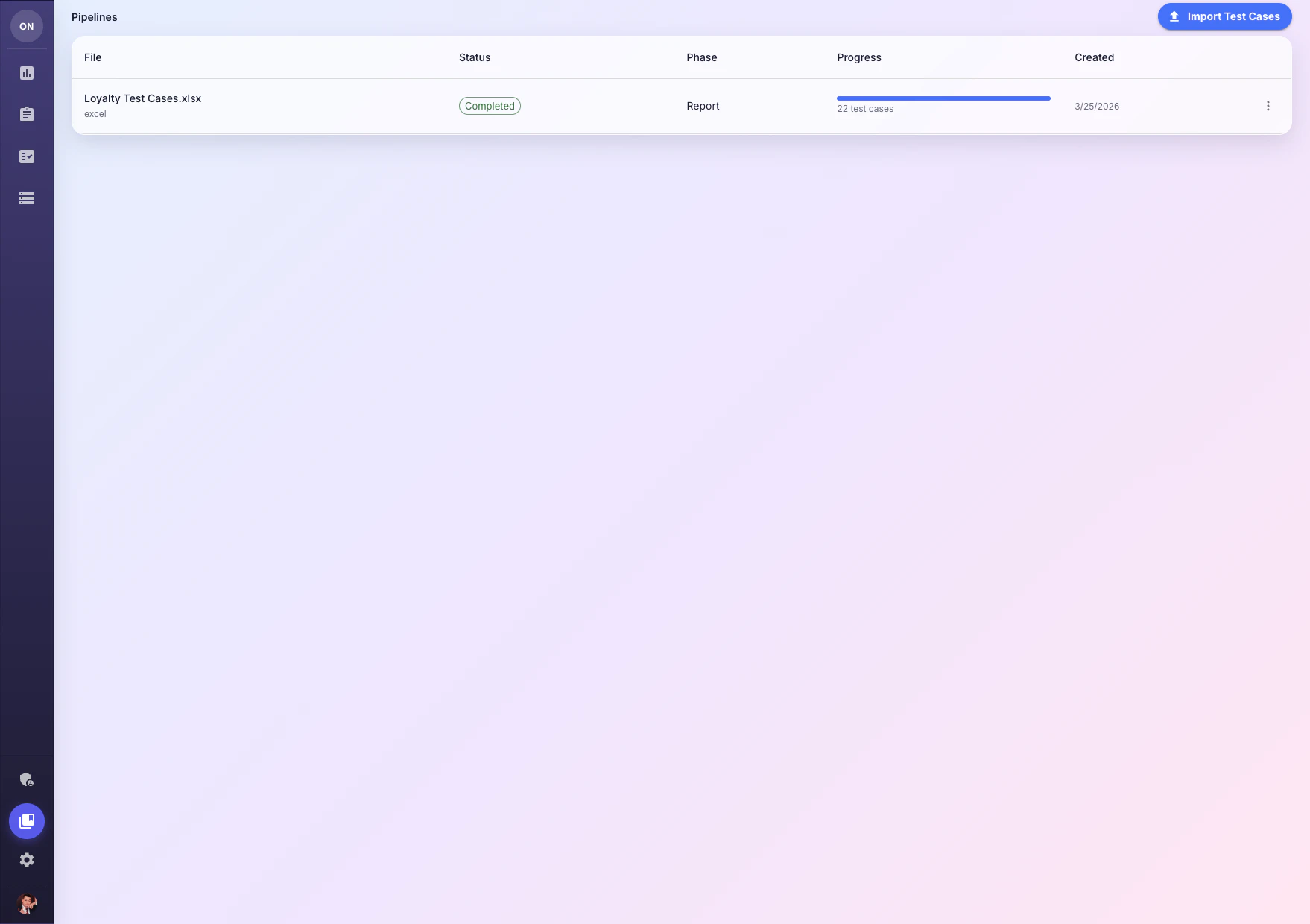
Navigate to **Tasks** in the sidebar to see all your pipelines. Each pipeline tracks the progress of a test case import from upload to completion.
## Creating a Pipeline
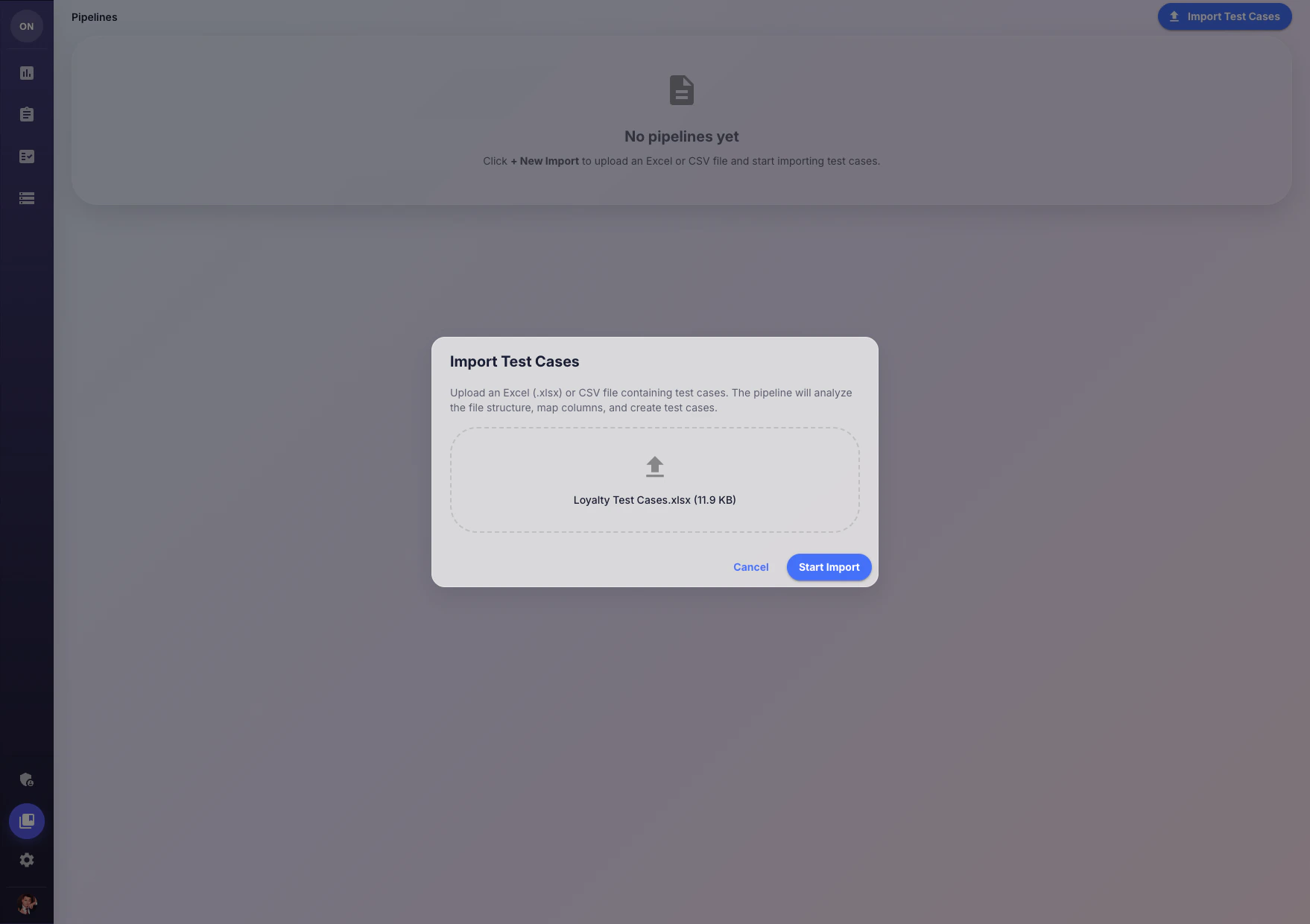
Click **Import Test Cases** and upload an Excel (.xlsx) or CSV file containing test cases. The pipeline will analyze the file structure automatically.
## Accessing Pipelines
Navigate to **Tasks** in the sidebar to see all your pipelines. Each pipeline tracks the progress of a test case import from upload to completion.
## Creating a Pipeline
Click **Import Test Cases** and upload an Excel (.xlsx) or CSV file containing test cases. The pipeline will analyze the file structure automatically.
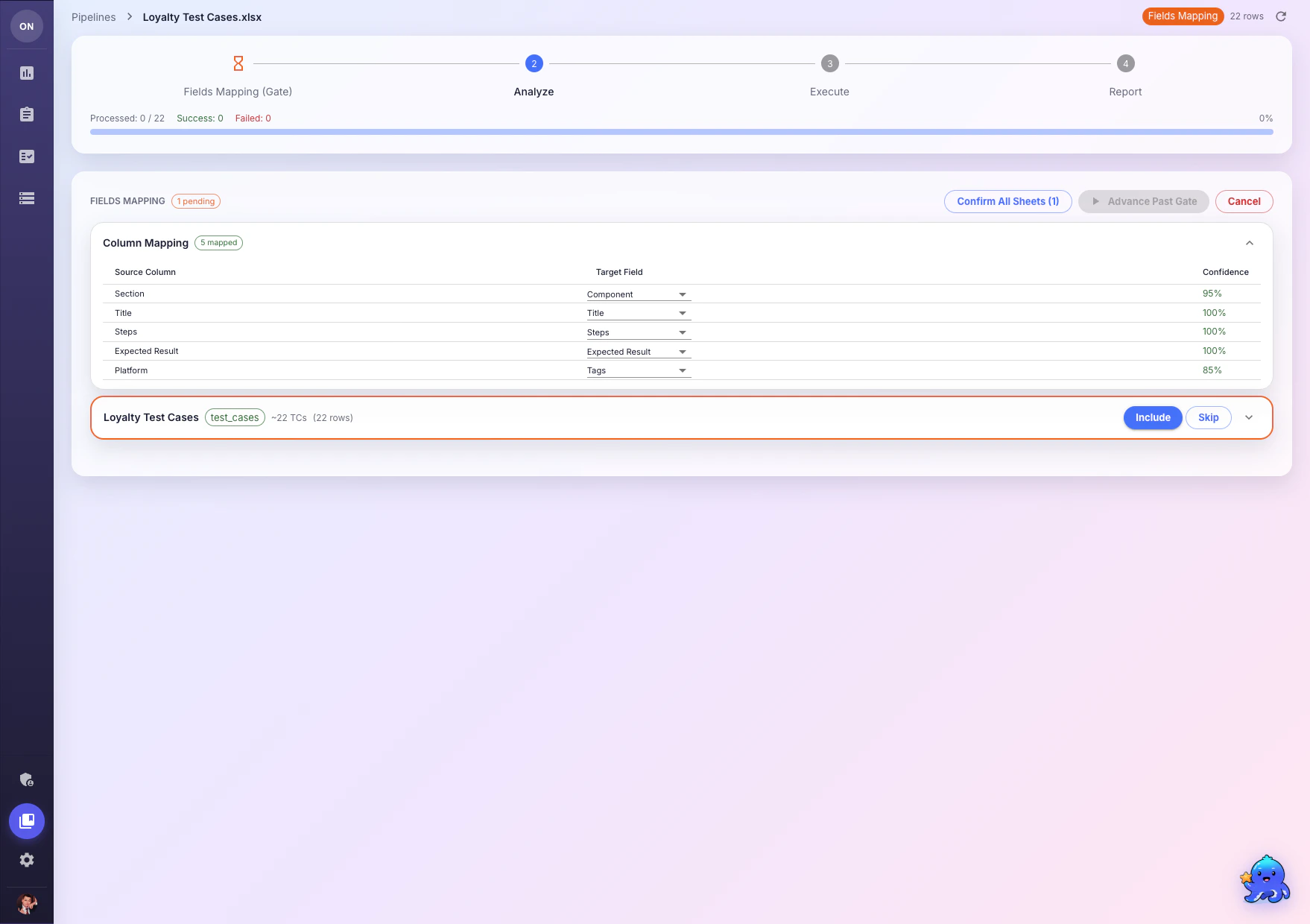
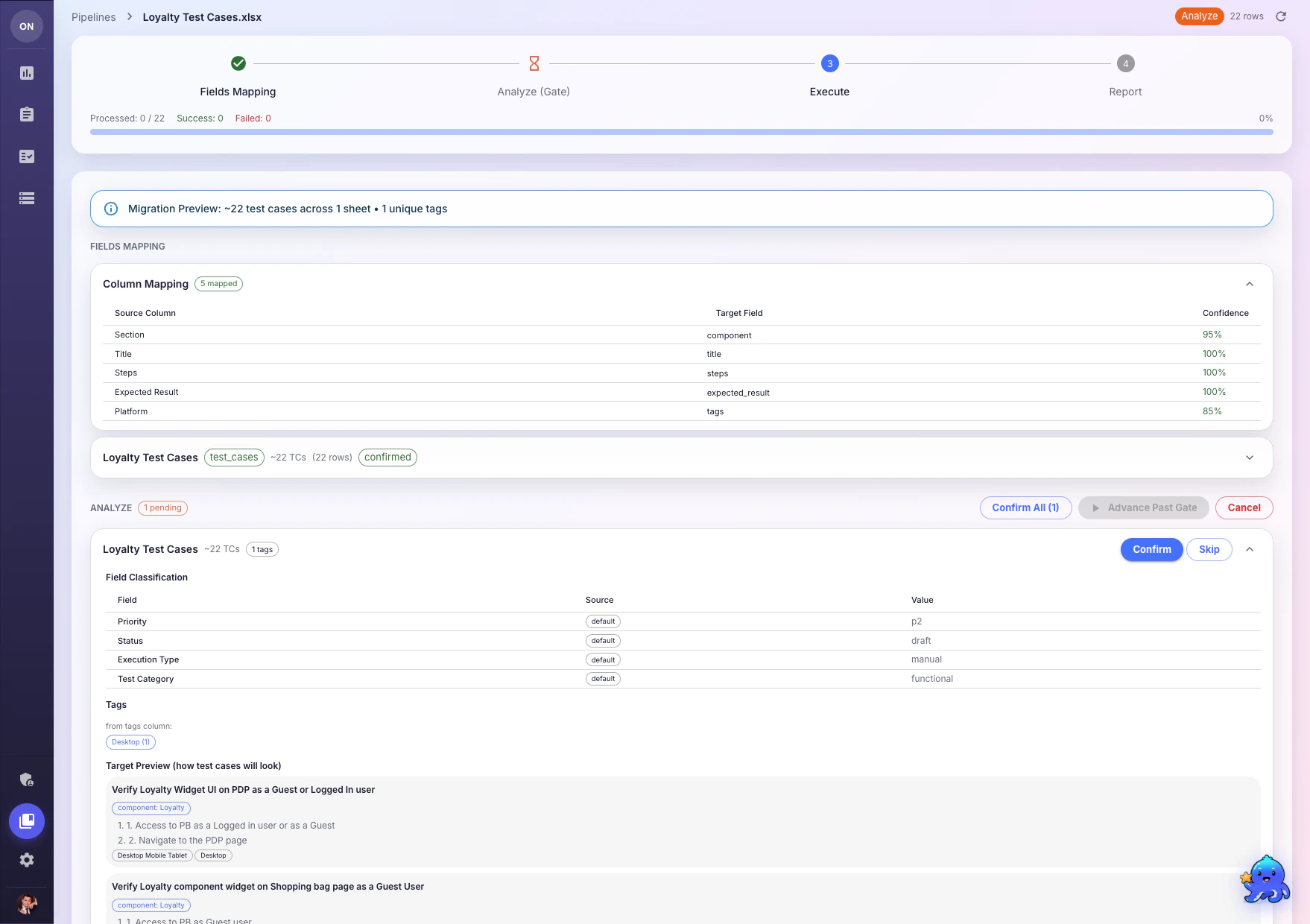
 The AI analyzes your spreadsheet columns and suggests mappings to OneTest fields (Title, Description, Priority, Steps, etc.). Review and adjust the mappings as needed, then click **Confirm** to proceed.
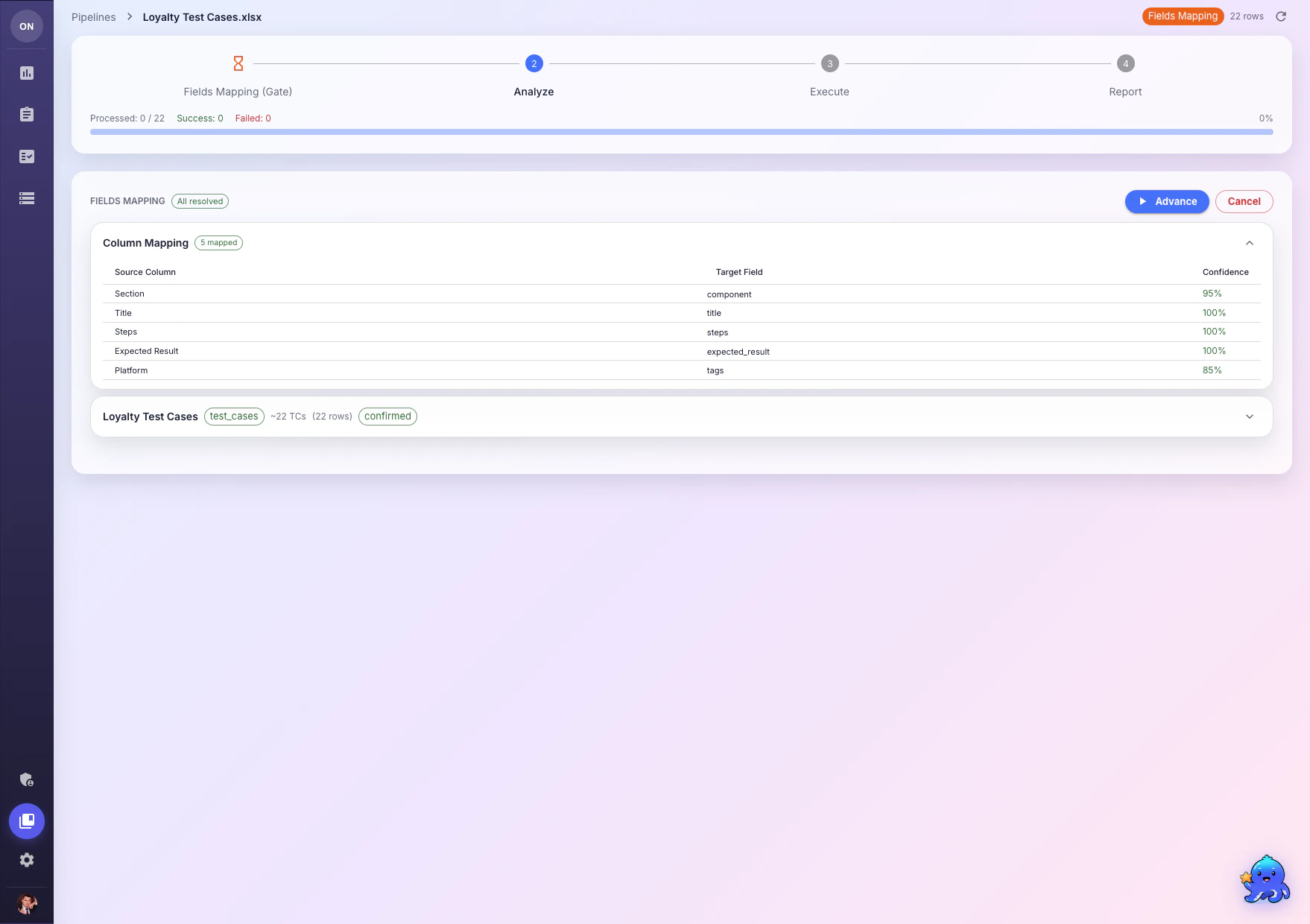 The pipeline parses and validates your test cases based on the field mapping. Review any warnings or issues before proceeding.
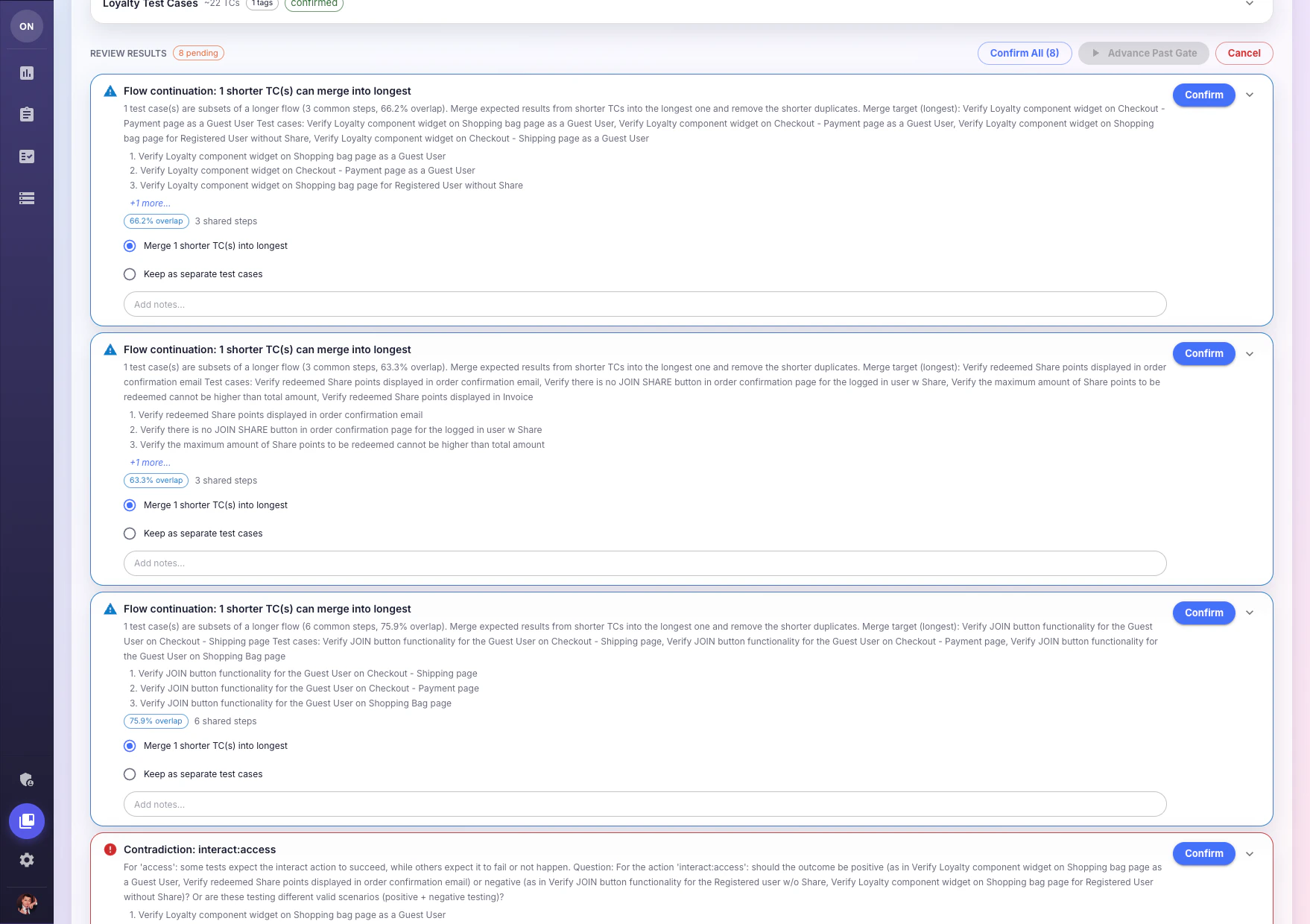
 Test cases are created in OneTest. The pipeline then presents **Review Results** — AI-detected quality findings such as:
* **Flow continuations** — shorter test cases that overlap with longer ones and can be merged
* **Contradictions** — tests with conflicting expected outcomes for the same action
* **Merge proposals** — duplicate or redundant tests that should be combined
For each finding, choose to merge, keep separate, or skip. Use **Confirm All** to accept the AI's recommendations in bulk.
Test cases are created in OneTest. The pipeline then presents **Review Results** — AI-detected quality findings such as:
* **Flow continuations** — shorter test cases that overlap with longer ones and can be merged
* **Contradictions** — tests with conflicting expected outcomes for the same action
* **Merge proposals** — duplicate or redundant tests that should be combined
For each finding, choose to merge, keep separate, or skip. Use **Confirm All** to accept the AI's recommendations in bulk.
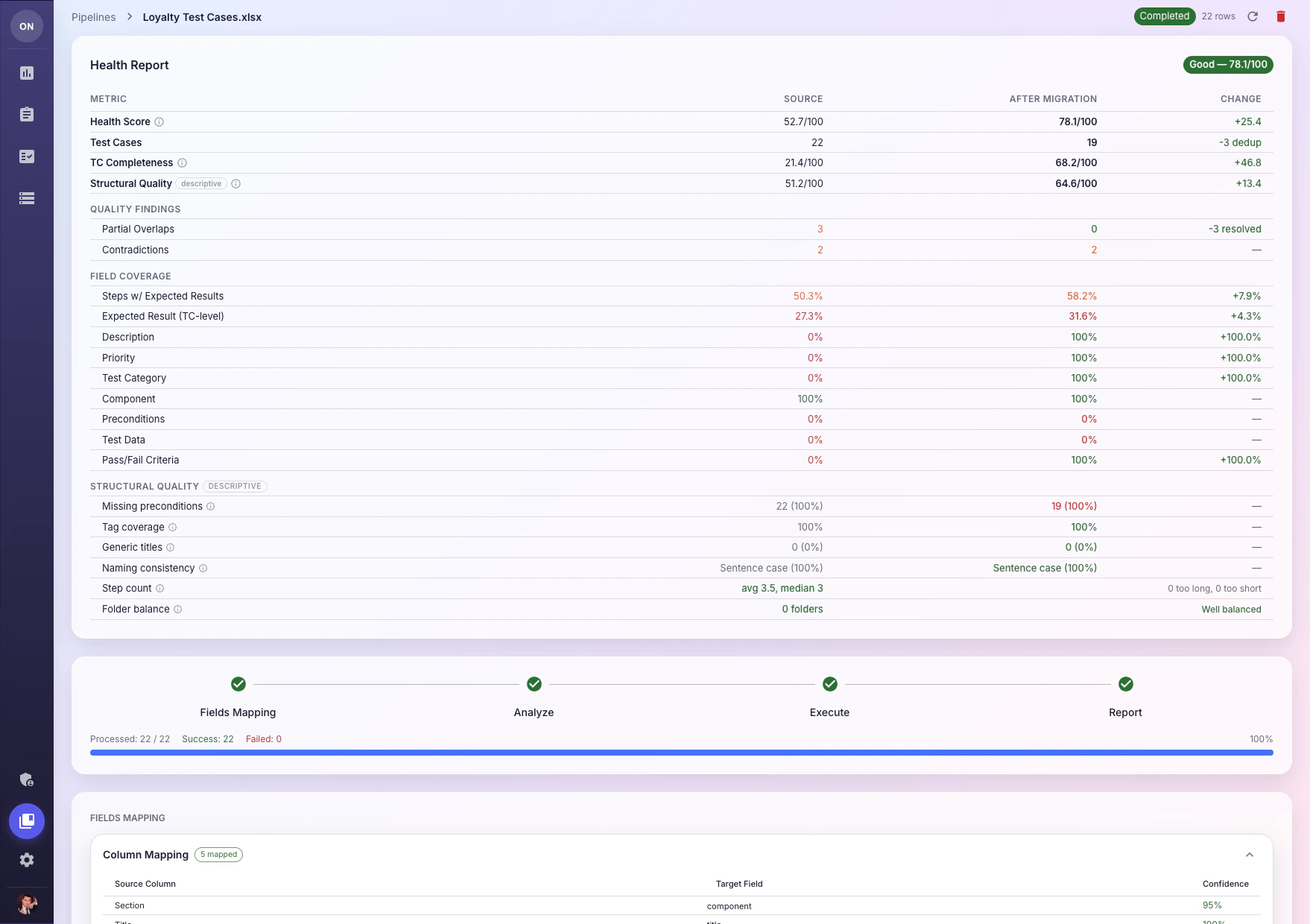
 A comprehensive **Health Report** compares source file quality against the migrated result:
* **Health Score** — overall quality rating (e.g., 78.1/100)
* **TC Completeness** — field coverage improvements (description, priority, pass/fail criteria)
* **Structural Quality** — naming consistency, step counts, tag coverage
* **Quality Findings** — resolved overlaps and contradictions
A comprehensive **Health Report** compares source file quality against the migrated result:
* **Health Score** — overall quality rating (e.g., 78.1/100)
* **TC Completeness** — field coverage improvements (description, priority, pass/fail criteria)
* **Structural Quality** — naming consistency, step counts, tag coverage
* **Quality Findings** — resolved overlaps and contradictions
 Your test cases are now available in Test Cases. Navigate there to review and organize them.
## Pipeline Phases
Each pipeline progresses through these phases:
| Phase | Description |
| ---------------------- | --------------------------------------------------------------------------------------- |
| **Uploading** | File is being uploaded and validated |
| **Planning (Gate 1)** | Field mapping and configuration |
| **Analyzing (Gate 2)** | AI parses and validates test cases |
| **Executing (Gate 3)** | Test cases are imported into OneTest, with review of merge proposals and contradictions |
| **Reporting** | Health report with before/after quality comparison |
| **Completed** | Import finished successfully |
| **Failed** | Import failed — check error details |
## Decision Gates
At each gate, the pipeline may present **decision items** that require your input:
* **Blocking items** — Must be resolved before the pipeline can advance
* **Non-blocking items** — Can be resolved or skipped
You can resolve items individually or use **Batch Resolve** to handle multiple items at once.
## Pipeline Actions
| Action | Description |
| ------------- | ------------------------------------------------ |
| **Advance** | Move to the next phase after reviewing decisions |
| **Cancel** | Stop the pipeline (imported data remains) |
| **Resume** | Continue a paused pipeline |
| **Rollback** | Undo the import and remove created test cases |
| **Delete** | Remove the pipeline record |
| **Duplicate** | Create a new pipeline with the same settings |
## When to Use Pipelines vs Simple Import
| Feature | Simple Import | Pipeline |
| ----------------- | ------------------------- | --------------------------- |
| Best for | Small files, known format | Large files, unknown format |
| Field mapping | Automatic (fixed format) | AI-powered with review |
| Decision gates | No | Yes |
| Progress tracking | Basic | Detailed per-phase |
| Rollback | No | Yes |
Use simple [Import & Export](/ui/import-export) for quick imports of files in the standard OneTest format. Use Pipelines when importing from external tools or dealing with hundreds of test cases.
## What's Next?
Quick import for standard format files
Manage your imported test cases
Your test cases are now available in Test Cases. Navigate there to review and organize them.
## Pipeline Phases
Each pipeline progresses through these phases:
| Phase | Description |
| ---------------------- | --------------------------------------------------------------------------------------- |
| **Uploading** | File is being uploaded and validated |
| **Planning (Gate 1)** | Field mapping and configuration |
| **Analyzing (Gate 2)** | AI parses and validates test cases |
| **Executing (Gate 3)** | Test cases are imported into OneTest, with review of merge proposals and contradictions |
| **Reporting** | Health report with before/after quality comparison |
| **Completed** | Import finished successfully |
| **Failed** | Import failed — check error details |
## Decision Gates
At each gate, the pipeline may present **decision items** that require your input:
* **Blocking items** — Must be resolved before the pipeline can advance
* **Non-blocking items** — Can be resolved or skipped
You can resolve items individually or use **Batch Resolve** to handle multiple items at once.
## Pipeline Actions
| Action | Description |
| ------------- | ------------------------------------------------ |
| **Advance** | Move to the next phase after reviewing decisions |
| **Cancel** | Stop the pipeline (imported data remains) |
| **Resume** | Continue a paused pipeline |
| **Rollback** | Undo the import and remove created test cases |
| **Delete** | Remove the pipeline record |
| **Duplicate** | Create a new pipeline with the same settings |
## When to Use Pipelines vs Simple Import
| Feature | Simple Import | Pipeline |
| ----------------- | ------------------------- | --------------------------- |
| Best for | Small files, known format | Large files, unknown format |
| Field mapping | Automatic (fixed format) | AI-powered with review |
| Decision gates | No | Yes |
| Progress tracking | Basic | Detailed per-phase |
| Rollback | No | Yes |
Use simple [Import & Export](/ui/import-export) for quick imports of files in the standard OneTest format. Use Pipelines when importing from external tools or dealing with hundreds of test cases.
## What's Next?
Quick import for standard format files
Manage your imported test cases