> ## Documentation Index
> Fetch the complete documentation index at: https://onetest.ai/llms.txt
> Use this file to discover all available pages before exploring further.
# Import & Export
> Import test cases from Excel or ZIP and export for sharing or backup
OneTest supports importing and exporting test cases in multiple formats, making it easy to migrate from other tools or share test suites across teams.
 ## Importing Test Cases
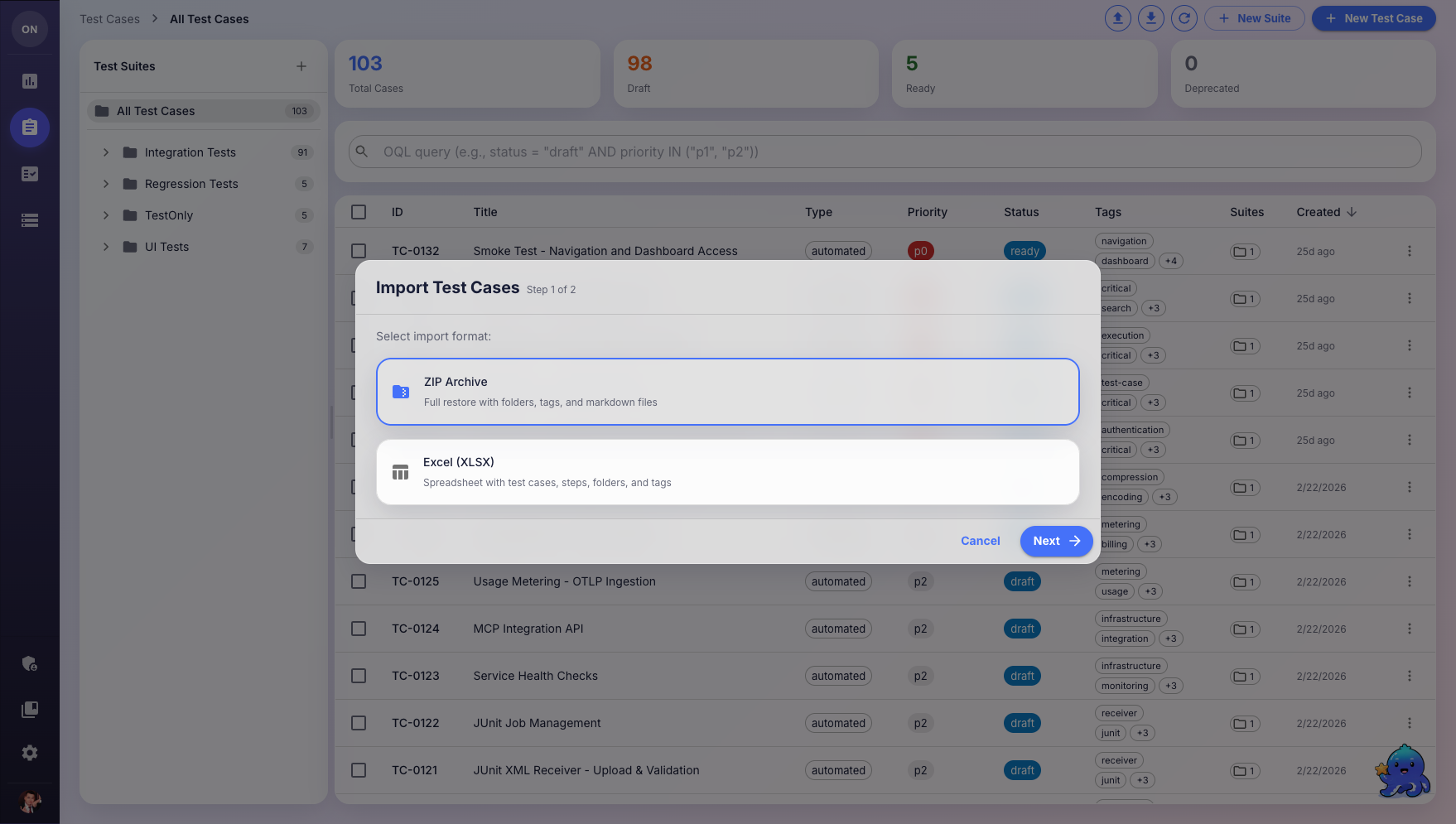
Click the **Import** button (upload icon) in the Test Cases toolbar, or go to **Pipelines** > **Import Test Cases** for bulk imports.
Choose your import format:
* **ZIP Archive** — Full restore with folders, tags, and markdown files
* **Excel (XLSX)** — Spreadsheet with test cases, steps, folders, and tags
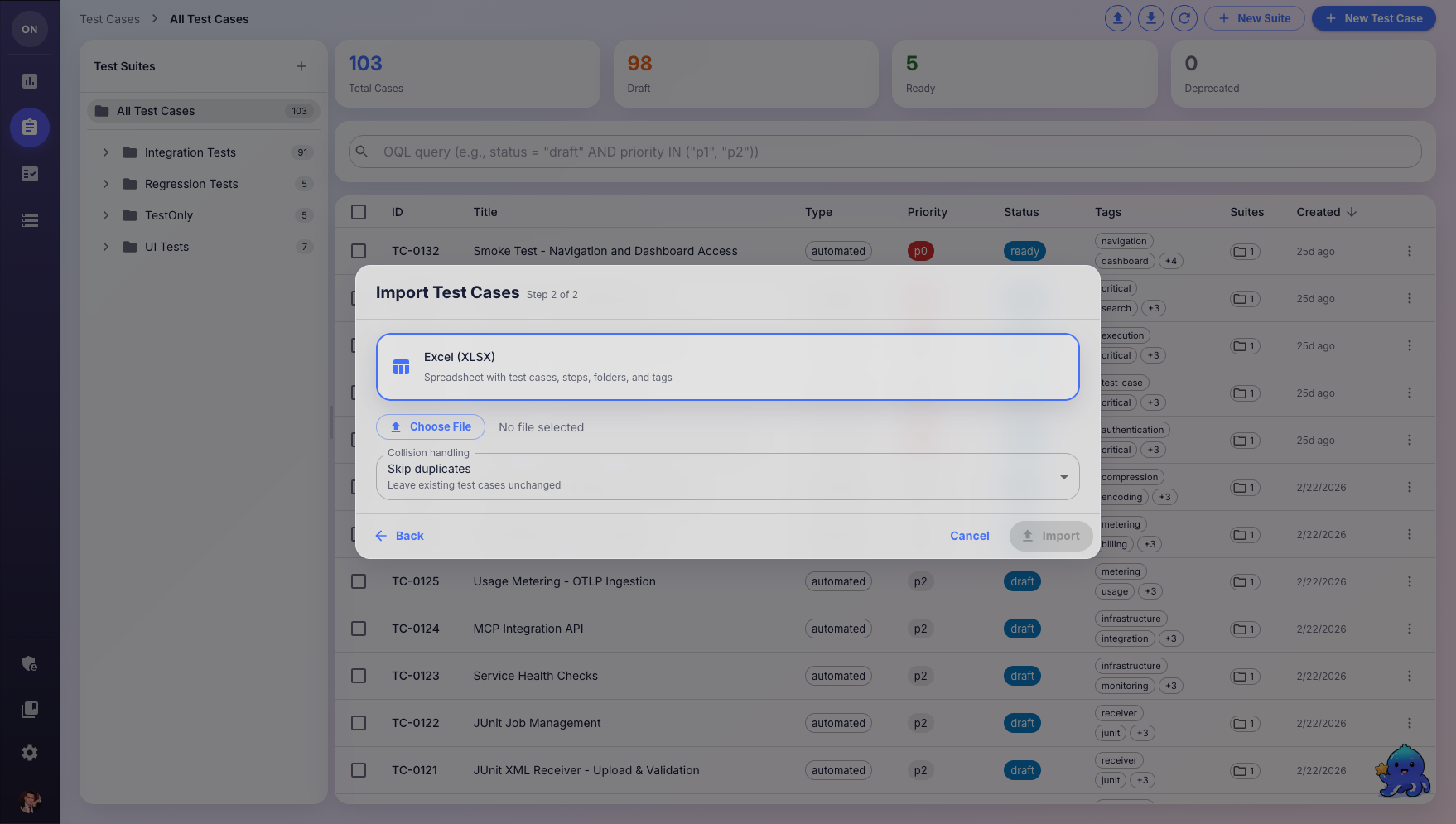
Click **Choose File** or drag and drop your file into the upload area.
Choose how to handle duplicate test cases:
| Strategy | Description |
| ---------------------- | -------------------------------------------- |
| **Skip duplicates** | Leave existing test cases unchanged |
| **Overwrite existing** | Create a new version of existing test cases |
| **Assign new IDs** | Import all test cases with fresh identifiers |
Click **Import** to begin. You'll see a summary of imported test cases when complete.
## Importing Test Cases
Click the **Import** button (upload icon) in the Test Cases toolbar, or go to **Pipelines** > **Import Test Cases** for bulk imports.
Choose your import format:
* **ZIP Archive** — Full restore with folders, tags, and markdown files
* **Excel (XLSX)** — Spreadsheet with test cases, steps, folders, and tags
Click **Choose File** or drag and drop your file into the upload area.
Choose how to handle duplicate test cases:
| Strategy | Description |
| ---------------------- | -------------------------------------------- |
| **Skip duplicates** | Leave existing test cases unchanged |
| **Overwrite existing** | Create a new version of existing test cases |
| **Assign new IDs** | Import all test cases with fresh identifiers |
Click **Import** to begin. You'll see a summary of imported test cases when complete.
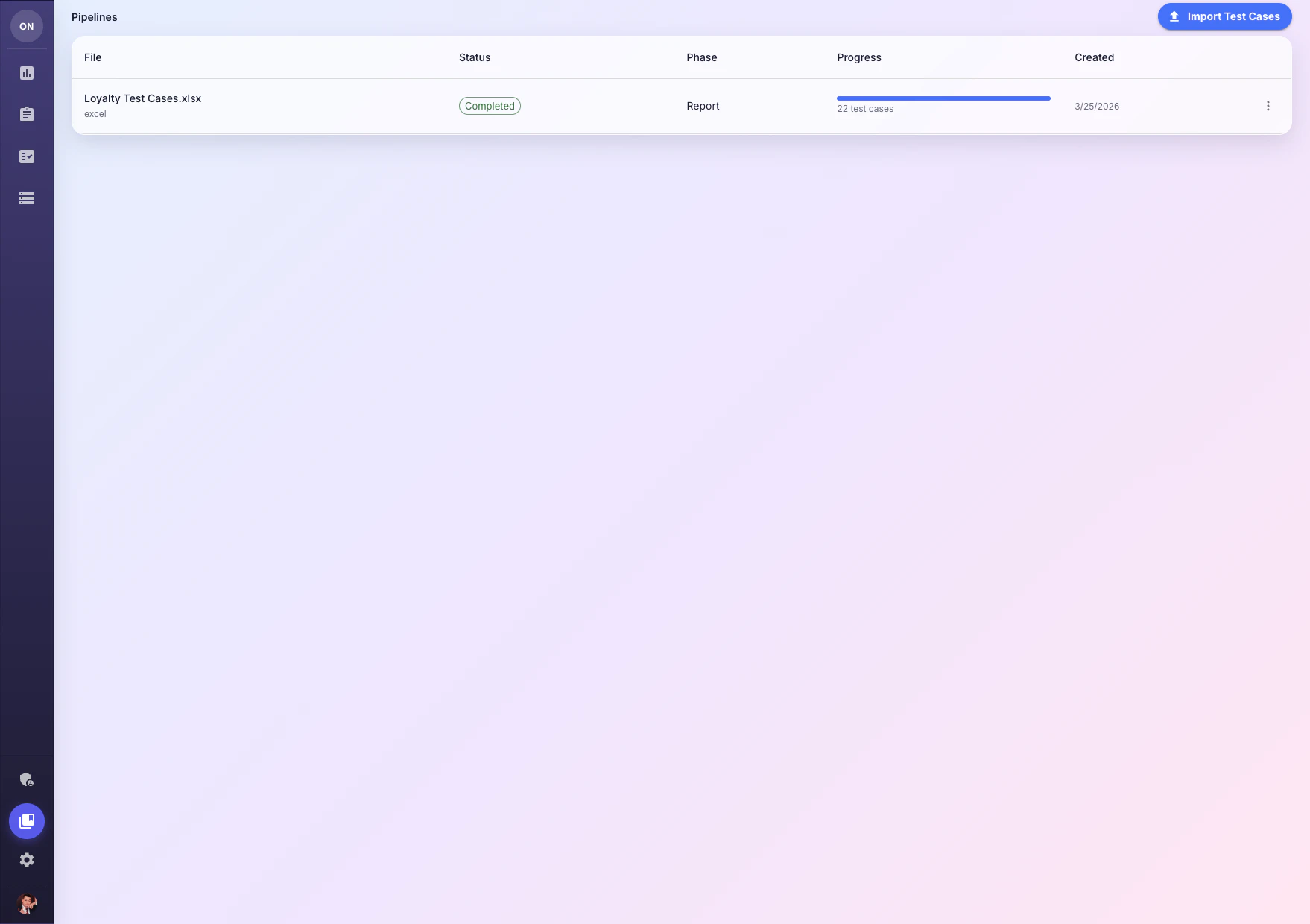
 For large or complex imports with hundreds of test cases, use [Pipelines](/ui/pipelines) instead. Pipelines provide AI-powered field mapping, decision gates, and multi-phase progress tracking.
 ## Exporting Test Cases
Click the **Export** button (download icon) in the Test Cases toolbar.
### Export Formats
| Format | Contents |
| ---------------- | --------------------------------------------------------------------- |
| **Excel (XLSX)** | Multi-sheet workbook with Test Cases, Steps, Folders, and Tags sheets |
| **ZIP Archive** | Full backup with folder structure, tags, and markdown files |
### Export Scopes
* **All test cases** — Export everything in the current product
* **OQL-filtered results** — Export only test cases matching your current query (e.g., `priority = p1 AND status = ready`)
* **Selected tests** — Export only test cases you've checked in the table
* **Unassigned tests** — Export test cases not assigned to any folder
## Preparing Import Files
Your Excel file should contain these sheets:
* **Test Cases** — One row per test case with columns: Title, Description, Priority, Type, Status, Category, Tags
* **Steps** (optional) — Test steps with columns: Test Case Title, Step Number, Action, Expected Result
* **Folders** (optional) — Folder hierarchy with columns: Name, Parent Folder
* **Tags** (optional) — Tag definitions with columns: Name, Color
Export an existing test suite first to see the expected format, then use it as a template for your import file.
ZIP archives should contain:
* Markdown (`.md`) files for each test case
* A `folders.json` file defining the folder structure
* A `tags.json` file defining tags
This format is ideal for full backup/restore scenarios.
## What's Next?
Use AI-powered pipelines for complex bulk imports
Organize and manage your imported test cases
## Exporting Test Cases
Click the **Export** button (download icon) in the Test Cases toolbar.
### Export Formats
| Format | Contents |
| ---------------- | --------------------------------------------------------------------- |
| **Excel (XLSX)** | Multi-sheet workbook with Test Cases, Steps, Folders, and Tags sheets |
| **ZIP Archive** | Full backup with folder structure, tags, and markdown files |
### Export Scopes
* **All test cases** — Export everything in the current product
* **OQL-filtered results** — Export only test cases matching your current query (e.g., `priority = p1 AND status = ready`)
* **Selected tests** — Export only test cases you've checked in the table
* **Unassigned tests** — Export test cases not assigned to any folder
## Preparing Import Files
Your Excel file should contain these sheets:
* **Test Cases** — One row per test case with columns: Title, Description, Priority, Type, Status, Category, Tags
* **Steps** (optional) — Test steps with columns: Test Case Title, Step Number, Action, Expected Result
* **Folders** (optional) — Folder hierarchy with columns: Name, Parent Folder
* **Tags** (optional) — Tag definitions with columns: Name, Color
Export an existing test suite first to see the expected format, then use it as a template for your import file.
ZIP archives should contain:
* Markdown (`.md`) files for each test case
* A `folders.json` file defining the folder structure
* A `tags.json` file defining tags
This format is ideal for full backup/restore scenarios.
## What's Next?
Use AI-powered pipelines for complex bulk imports
Organize and manage your imported test cases