> ## Documentation Index
> Fetch the complete documentation index at: https://onetest.ai/llms.txt
> Use this file to discover all available pages before exploring further.
# LLM Configuration
> Configure AI providers and model tiers for the OneTest AI Assistant
The AI Assistant requires an LLM provider to be configured before it can generate tests, answer questions, or perform analysis. OneTest supports multiple providers so you can use your existing AI infrastructure.
 The AI Assistant will not work until you configure an LLM provider. This is the first step to enabling AI features in OneTest.
## Supported Providers
**Required fields:**
* Access Key ID
* Secret Access Key
* Region (e.g., `us-east-1`, `eu-central-1`)
**Recommended models:**
* High-Tier: `anthropic.claude-sonnet-4-5-20250929-v1:0`
* Default: `anthropic.claude-sonnet-4-5-20250929-v1:0`
* Low-Tier: `anthropic.claude-haiku-4-5-20251001-v1:0`
**Required fields:**
* API Key
**Recommended models:**
* High-Tier: `gpt-4o`
* Default: `gpt-4o`
* Low-Tier: `gpt-4o-mini`
**Required fields:**
* API Key
**Recommended models:**
* High-Tier: `claude-sonnet-4-5-20250929`
* Default: `claude-sonnet-4-5-20250929`
* Low-Tier: `claude-haiku-4-5-20251001`
**Required fields:**
* API Key
* Endpoint URL
* Deployment Name
Use your Azure OpenAI deployment names for each model tier.
## Model Tiers
OneTest uses three model tiers for different task complexities:
| Tier | Purpose | Examples |
| ------------------------- | --------------------------------------------------- | ------------------------------------------------------------- |
| **High-Tier** (reasoning) | Complex analysis, test generation from requirements | Generating comprehensive test suites, analyzing coverage gaps |
| **Default** (balanced) | General-purpose tasks | Answering questions, searching tests, simple generation |
| **Low-Tier** (fast) | Quick, simple operations | Summarization, classification, simple lookups |
## Setup Steps
Go to **Settings** > **LLM Configuration** from the sidebar.
Click your preferred provider (Azure, AWS Bedrock, OpenAI, or Anthropic).
Fill in the required credentials for your chosen provider.
Enter model identifiers for each tier. Use the recommended models above or your own deployments.
Click **Test Connection** to validate your credentials and model access.
Click **Save Configuration** to activate the AI Assistant.
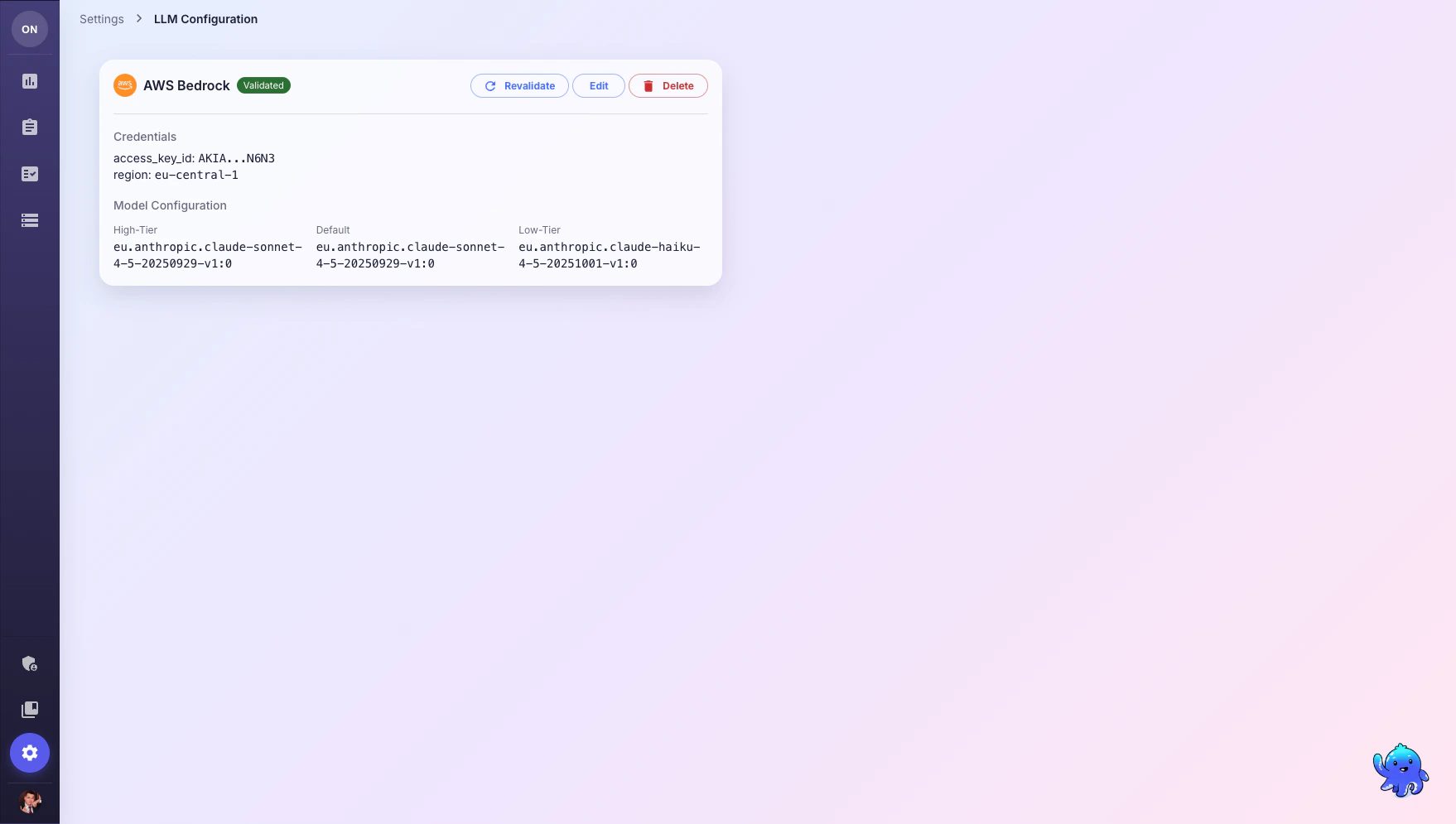
Once configured, you can manage your LLM setup with **Revalidate** (test again), **Edit** (change settings), or **Delete** (remove configuration).
## What's Next?
Start using the AI Assistant to generate and search tests
Connect CI/CD pipelines and external tools via API keys
The AI Assistant will not work until you configure an LLM provider. This is the first step to enabling AI features in OneTest.
## Supported Providers
**Required fields:**
* Access Key ID
* Secret Access Key
* Region (e.g., `us-east-1`, `eu-central-1`)
**Recommended models:**
* High-Tier: `anthropic.claude-sonnet-4-5-20250929-v1:0`
* Default: `anthropic.claude-sonnet-4-5-20250929-v1:0`
* Low-Tier: `anthropic.claude-haiku-4-5-20251001-v1:0`
**Required fields:**
* API Key
**Recommended models:**
* High-Tier: `gpt-4o`
* Default: `gpt-4o`
* Low-Tier: `gpt-4o-mini`
**Required fields:**
* API Key
**Recommended models:**
* High-Tier: `claude-sonnet-4-5-20250929`
* Default: `claude-sonnet-4-5-20250929`
* Low-Tier: `claude-haiku-4-5-20251001`
**Required fields:**
* API Key
* Endpoint URL
* Deployment Name
Use your Azure OpenAI deployment names for each model tier.
## Model Tiers
OneTest uses three model tiers for different task complexities:
| Tier | Purpose | Examples |
| ------------------------- | --------------------------------------------------- | ------------------------------------------------------------- |
| **High-Tier** (reasoning) | Complex analysis, test generation from requirements | Generating comprehensive test suites, analyzing coverage gaps |
| **Default** (balanced) | General-purpose tasks | Answering questions, searching tests, simple generation |
| **Low-Tier** (fast) | Quick, simple operations | Summarization, classification, simple lookups |
## Setup Steps
Go to **Settings** > **LLM Configuration** from the sidebar.
Click your preferred provider (Azure, AWS Bedrock, OpenAI, or Anthropic).
Fill in the required credentials for your chosen provider.
Enter model identifiers for each tier. Use the recommended models above or your own deployments.
Click **Test Connection** to validate your credentials and model access.
Click **Save Configuration** to activate the AI Assistant.
Once configured, you can manage your LLM setup with **Revalidate** (test again), **Edit** (change settings), or **Delete** (remove configuration).
## What's Next?
Start using the AI Assistant to generate and search tests
Connect CI/CD pipelines and external tools via API keys